![LiquidInstruments-KnowledgeBase-Logo.png]](https://prm.liquidinstruments.com/hs-fs/hubfs/LiquidInstruments-KnowledgeBase-Logo.png?height=50&name=LiquidInstruments-KnowledgeBase-Logo.png)
There are multiple ways to determine the IP address of your Moku:Lab depending on the software interface you use. The recommended methods are through the iPad App, pyMoku, and the Windows App.
iPad App
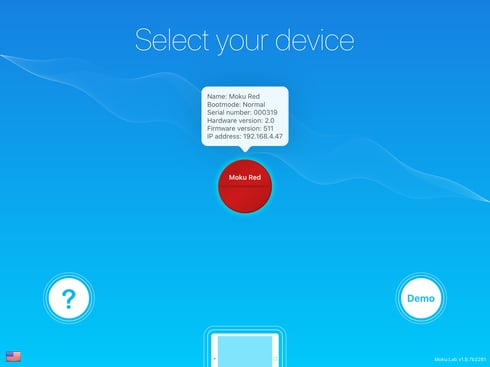
- Tap and hold your Moku:Lab in the Device menu; a window will open to show the Moku's IP address, along with firmware version, name and other information.
PyMoku
- Open your Command Window in Windows PCs, or Terminal for Mac and Linux computers.
- Type in "moku list" to show all Moku:Labs connected to your network. This will display their information, including the IP address.
Windows App
- In the Devices menu, hover your cursor above your Moku:Lab icon; a "Settings" icon should appear.
- Click the "Settings" icon to open the "Device settings" menu.
- You can find the current IP address of your Moku:Lab at the bottom right corner of the window.
Bonjour Browsers
For Mac computers you can discover the IP address of your Moku:Lab using the this Bonjour browser:
https://apps.apple.com/us/app/discovery-dns-sd-browser/id1381004916?mt=12
USB-connected Moku:Lab
If you are unable to determine the IP address of your Moku:Lab using the recommended methods, please reach out to our support team on via email: support@liquidinstruments.com