![LiquidInstruments-KnowledgeBase-Logo.png]](https://prm.liquidinstruments.com/hs-fs/hubfs/LiquidInstruments-KnowledgeBase-Logo.png?height=50&name=LiquidInstruments-KnowledgeBase-Logo.png)
(NOTE : Some Windows10 users in Europe have reported that the RNDIS driver is not present in their version of Windows. Thus Moku:Lab does not appear under network adaptors. Please consider using the Moku:Lab ethernet port or page down for specific instructions for Windows in non-English regions)
The Moku:Lab can connect to the Windows app via a simple USB cable; no ethernet or wifi is needed. This is accomplished by a RNDIS ('remote network driver interface specification') over USB.
1. Connect a USB cable between the Moku:Lab mini B data port and your PC
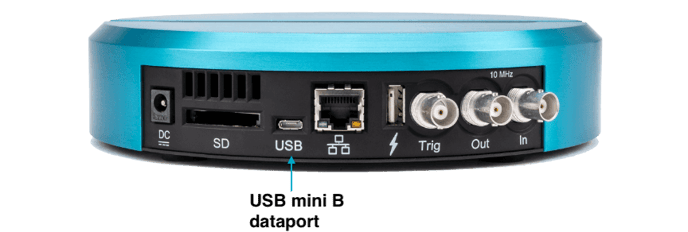
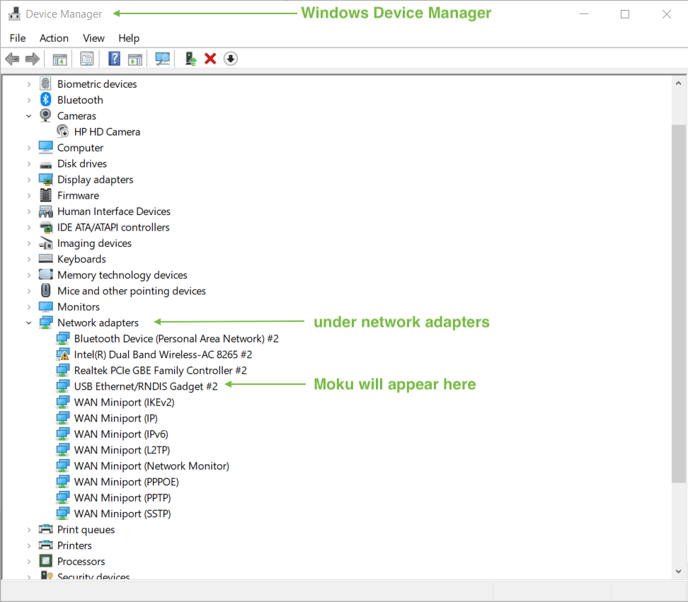
2. Open Windows Device Manager, confirm a RNDIS connection under Network Adapters
3. Open the MokuMaster windows app and select Menu -> Connect -> Manual Connection to manually enter the IP address of the Moku:Lab. Each Moku:Lab will have a unique fixed IP address for its USB connection.
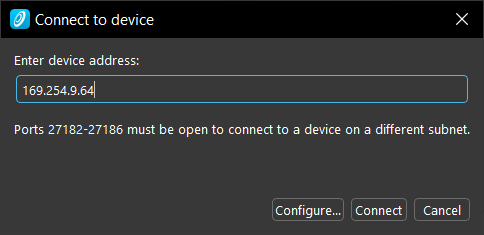
4. To obtain the unique IP address of a Moku connected by USB, please send the Moku:Lab serial number to support@liquidinstruments.com
How to locate the serial number of Moku:Lab ?
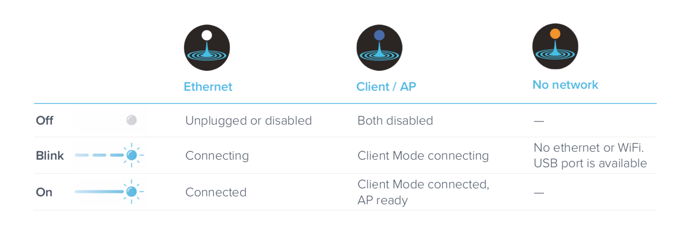
Moku:Lab LED status during USB mode
When connected via USB, and with no other network connection available, Moku:Lab's power button LED will flash orange.
Specific steps for Windows10 in non-English regional settings
We have had several reports of the above RNDIS process not working in environments where Windows system region is set to a non-English region. If Moku does NOT appear as a USB ethernet/RNDIS device please follow these steps :
-
Switch system language and region of Windows to US-English
-
Reboot. You may need to change the keyboard settings to the correct language (lower right corner of the login screen) to be able to enter the correct password
-
Download the USB ethernet/RNDIS gadget driver (for Windows 7, 8, 8.1 and later) from this Microsoft link
-
Extract and install files with right-click
-
Reboot
-
Plug-in Moku and check appearance of RNDIS gadget at network adapters with device manager and show in above article
-
Start Moku desktop app and check Moku:Lab connection
-
Return system language and region to local region and language
-
Reboot
-
Repeat step 6 and 7 to confirm operation